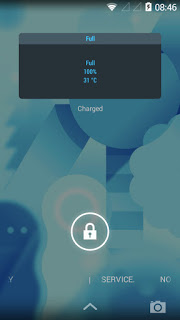
تطبيق Ampere والذي يظهر لنا حالة البطارية والأهم سرعة الشحن لهذه
البطارية .كثيراً تعترضنا مشكلة بطئ الشحن في جهازه الأندرويد ، وتكون هذه
المشكلة لها مسببات عدة منها السلك المستخدم في عملية الشحن ، أو مشكلة في
البطارية ذاتها ، او هنالك مجموعة من التطبيقات التي تكون في الخلفية وأنت
لا تدري تقوم بإستنزاف موارد بطارية هاتفك .
Download
Ampere FAQ
1. What is Ampere?
Ampere is an application for Android (4.0.3 and up) that measures the batteries charging and discharging current.
Ampere on Google Play:
http://adf.ly/1ISubsd
2. What is electric current?
An electric current is the flow of electric charge. In electric circuits this charge is carried by moving electrons in a wire.
3. Why is it good to measure the current?
The measured battery current values can be used for several purposes:
- To find out the general health of the device's battery.
- To find which charger works best with your device. (charging current)
- To find which USB charging cable works best with your device. (charging current)
- To watch your device’s power consumption and find power hungry apps. (discharging current)
4. What is A (ampere) and mA (milliampere)?
Ampere (symbol: A) is the unit of electrical current. The Ampere is
named after the French physicist Andre-Marie Ampere (1775-1836).
One Ampere is defined as the current that flows with an electric charge of one Coulomb (C) per second (s).
1 A = 1 C/s
The unit mA (milliampere) is one thousandth (10-3) of an Ampere.
5. My phone is not supported. What can I do?
Please read the first and the second posts in
this XDA developer forum thread. Please post your problem with screen shots in the XDA thread.
6. My phone always measures 0. What can I do?
You can try to select the other measurement interface in the following way:
On Lollipop (or later devices) first select the “Old measurement method”:
⇒ Settings ⇒ Basic settings ⇒ Old measurement method
Try to select the correct measurement interface:
⇒ Settings ⇒ Basic settings ⇒ Measurement interface
The “Measurement interface” option will be only shown if 2 or more pre-Lollipop (old) interfaces have been found on the device.
7. My phone only measures 10-40mA maximum. What can I do?
Different devices and ROMs use widely different interfaces for current
measurement. Some of them use mA (milliampere) and some of them uses
other units. To combat this problem, Ampere uses a multiplier value
assigned to every measurement interface which is used to correct the
measured value.
If you are having this problem, please try to select an other measurement interface with the correct multiplier.
⇒ Settings ⇒ Basic settings ⇒ Measurement interface
The “Measurement interface” option will be only shown if 2 or more pre-Lollipop (old) interfaces have been found on the device.
8. Ampere shows always “measuring” on my device. What can I do?
This is caused by some erroneous conditions. Please try the following:
- Restart the app.
- If that doesn't help, unplug and plug in the cord.
- If that doesn't help, delete and reinstall the app.
- If that doesn't help, reboot your phone.
- If it still doesn't help, try to select the "Old measurement method" and/or other Measurement Interface.
9. Why does this annoying “measuring” last almost 10 seconds?
Ampere measures the current 3 times a second and only gives you a
measured value when 30 values have been collected. Ampere then filters
the 10 highest and the 10 lowest values out and builds the average of
the remaining 10 values which it displays as the shown value.
Ampere’s internal buffer can hold a maximum of 50 values.
10. Why does the measurement start again after the phone has been switched off?
If you turn off your phone or leave the app (start or switch to other
app), then Ampere goes to sleep and the measurement also stops.
If you turn on your phone or start Ampere again then the measurement
starts from the beginning and you need to wait the 10 seconds until
enough measured values are collected to show you a stable value.
Fortunately you can force the measurement while your phone is sleeping by simply using:
- the widget
- or the notification.
11. What does charging and discharging current mean?
The app measures the charging and discharging current of the battery.
If your phone is not connected to a charger, you will see the discharging current which is negative.
⇒ Ampere shows the discharging current
If you connect a charger, then the current that the charger supplies
will be used to power your phone and the remaining power will be used to
charge the battery.
⇒ Ampere only shows the second value, the current used to charge the battery
EXAMPLE: You use a 500mA charger. You measured earlier that your phone
consumes 300mA without a charger connected (discharging current). This
means your battery can be charged at a maximum current of 200mA and
Ampere will only show you this 200mA charging current.
12. Why does Ampere show “Not charging” instead of “Discharging” on my device when the cord is unplugged?
A typical firmware problem is when a device reports a "Not Charging"
state instead of the "Discharging" state. Please switch on the "Enhanced
Measurement" setting in this case to force Ampere to try and measure
the discharging current in the "Not Charging" state.
⇒ Settings ⇒ Basic settings ⇒ Enhanced Measurement
If it doesn't work then please look at whether your device has more than
one measurement interface (Basic Settings / Measurement interface) and
try to select another interface
⇒ Settings ⇒ Basic settings ⇒ Measurement interface
The “Measurement interface” option will be only shown if 2 or more pre-Lollipop (old) interfaces have been found on the device
13. Why is the measured current unstable?
The displayed current can be shaky or unstable or even just zero. This
means that the Android system is providing unstable values.
Some phones, like the Nexus 4, report such unstable widespread readings
when charging with a low current charger (e.g. 500mA), that even the
average value is a joke.
14. How accurate is Ampere?
Please don't use the readings from this app as concrete science. The app
is not meant to be mA accurate, but it is good enough as a relative
measure of how various chargers and USB cables fair on the same device.
15. Which factors does the the discharging current depend on?
The current depends on many things (not a complete list):
- Charger (USB/AC/Wireless)
- USB cable
- Phone type
- Current tasks running
- Display brightness
- WiFi state
- GPS state
16. How can the notification icon in the notification bar be switched off?
The notification icon can be hidden by setting the notification priority to "minimum".
⇒ Settings ⇒ Notification settings ⇒ Notification priority
17. Why does Ampere show weird values on my Samsung device?
Unfortunately, some Samsung devices don't give correct (measured)
values. Just the maximum possible charging current with the actual USB
cable/charger configuration. This is a firmware problem and Ampere can't
correct this.
18. Does Ampere have home screen widgets?
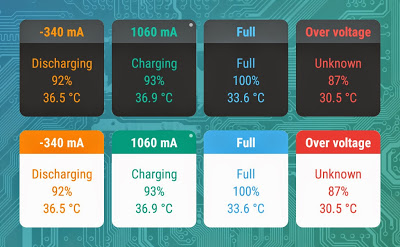
Yes, Ampere includes 1x1 home screen widgets in dark and light variants.
19. What is the blinking dot in the upper right corner of the widget?
The dot is blinking to show you that the widget and the measuring background service are working properly.

If the blinking stops, then something has happened and the displayed
values are not the actual values any more, but values from the past.
Please restart the app in such a case.
20. Can an Ampere widget be used with DashClock?
Not yet.
21. Can an Ampere widget be used with the lock screen?
Yes, but with limitations:
- The widget will be stretched
- Only in Android 4.2 to 4.4
22. Why the alert don't appear on my Android Wear watch?
Android Wear is designed to work with Android phones running Android 4.3 or higher.
Install the
Android Wear app on your device and make sure that you have given the Android Wear app access to notifications.
In 4.4: Settings > Security > Notification Access
In 5.0 and later: Settings > Sound & Notifications > Notification Access
Within the Notification access screen, make sure that Android Wear is checked.